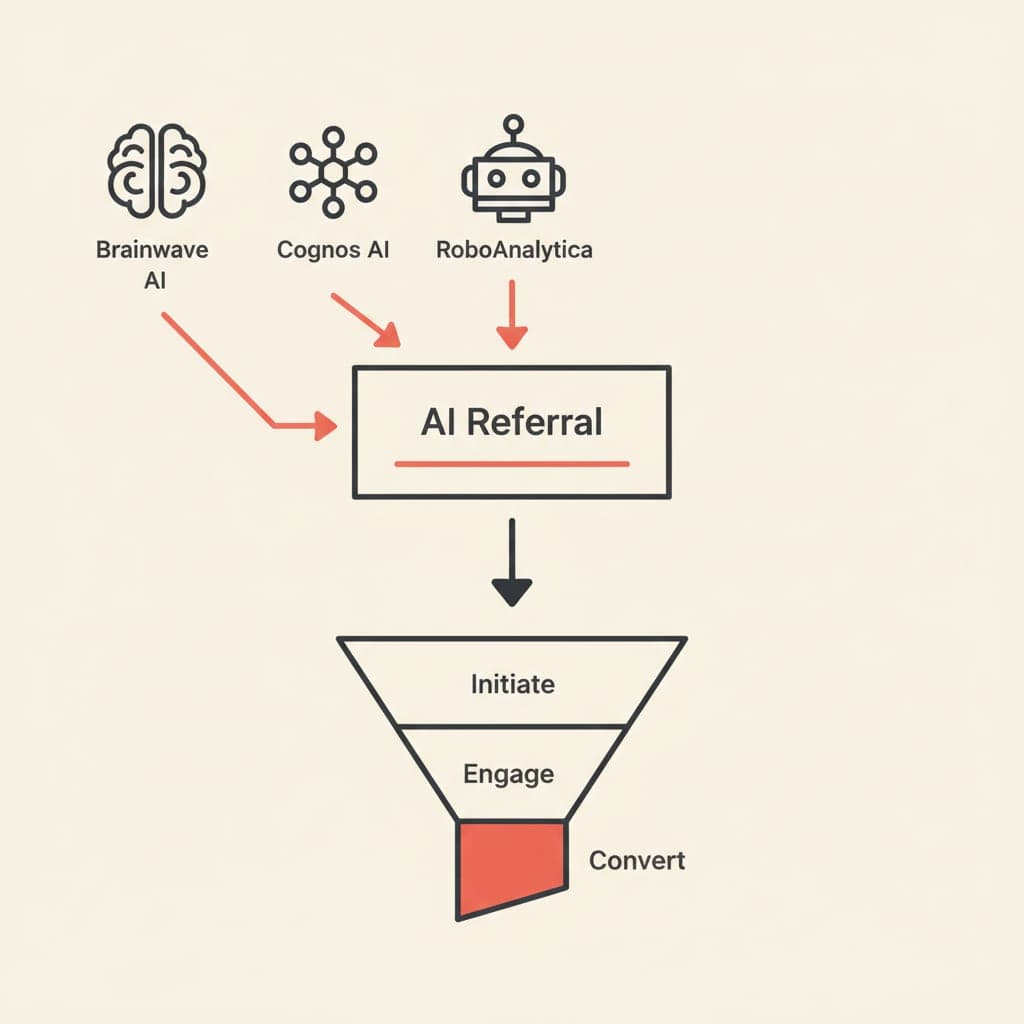
How to Track AI Traffic in GA4: ChatGPT & Perplexity
AI referrers like chatgpt.com and perplexity.ai are sending measurable traffic — but GA4 buries them. Here's how to surface, segment, and report on that traffic accurately.
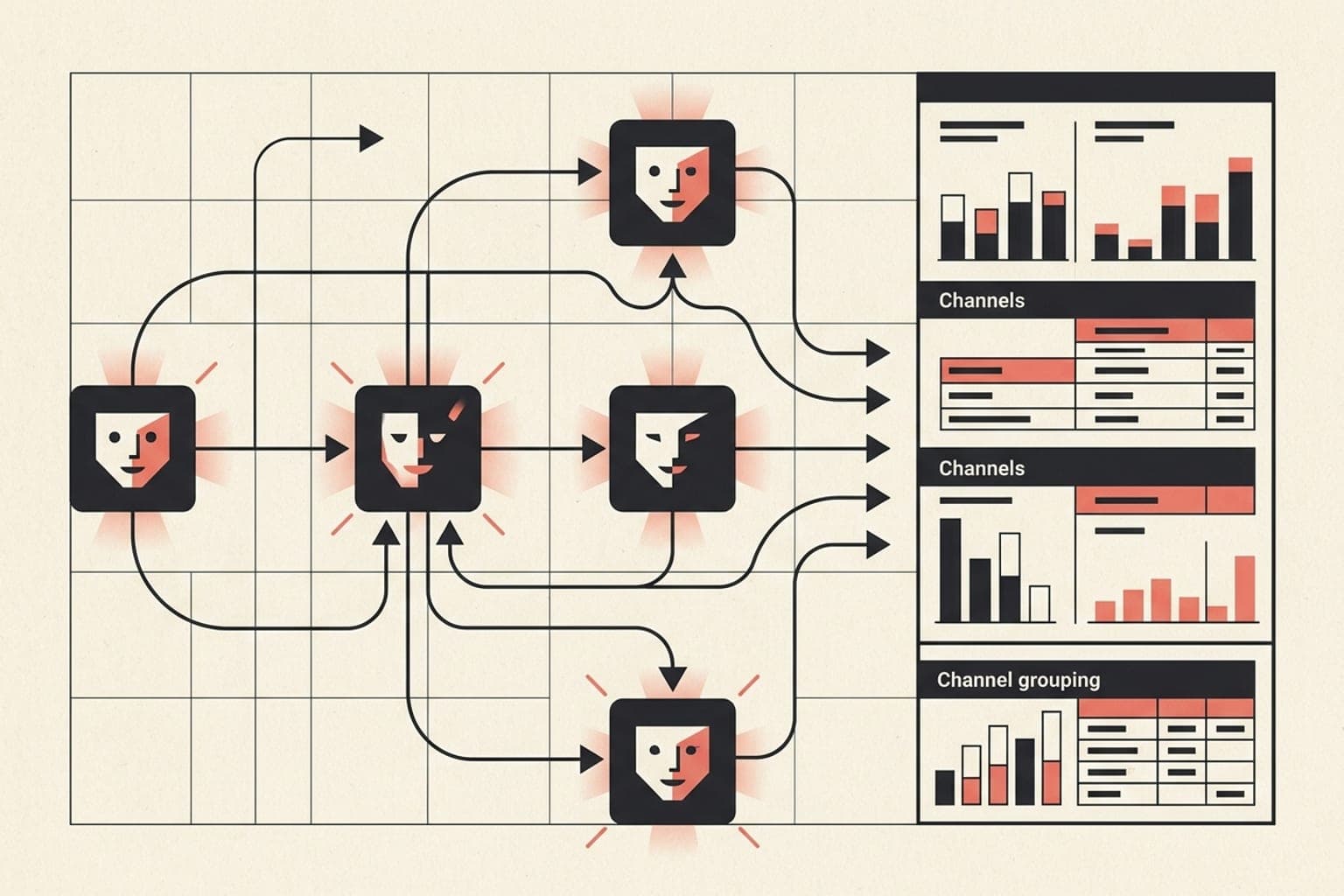
AI platforms are now referring users to external websites at scale. If you're not actively tracking referrals from chatgpt.com, perplexity.ai, and similar sources in GA4, you're flying blind on a growing acquisition channel.
What Is AI Referral Traffic?#
AI referral traffic is any session that originates when a user clicks a link surfaced by an AI assistant or AI search engine — such as ChatGPT, Perplexity, Copilot, or Gemini. The referral domain appears in the page_referrer parameter just like any other referring site. The challenge is that GA4 doesn't group these sources by default, so they scatter across "Unassigned" or "Referral" channels without context.
Why GA4 Misclassifies AI Referrers#
GA4's default channel grouping relies on a fixed ruleset. Sources like chatgpt.com and perplexity.ai don't match any predefined rule (Organic Search, Paid, Social, etc.), so sessions fall into Referral or, if the referrer is stripped, Direct / None. This makes AI-driven traffic genuinely hard to measure without intentional configuration.
The Referrer-Stripping Problem
Some AI surfaces — particularly when a user copies a link from a chat and opens it manually — send no referrer at all. That session looks identical to direct traffic. You can partially offset this by encouraging UTM-tagged links in any content you publish that AI tools cite, but you won't control organic citations.
How to Find AI Traffic in GA4 Right Now#
Before building anything custom, run a quick diagnostic:
- Open GA4 → Reports → Acquisition → Traffic Acquisition.
- Set the primary dimension to Session source.
- Search for
chatgpt,perplexity,bing(Copilot shares the bing.com domain),you.com,phind.com. - Set a date range covering the last 90 days to see meaningful volume.
If you see sessions, you already have data — you just haven't been watching it.
How to Create a Custom Channel Group for AI Referrers#
A custom channel group lets you consolidate all AI referrers into a single reportable bucket without touching your existing channel logic.
- Go to Admin → Data Display → Channel Groups.
- Click Create new channel group.
- Name it something like
AI Assistants. - Add a new channel called AI Referral.
- Set the condition: Session source contains (use OR logic for each):
chatgpt.comperplexity.aiyou.comphind.comcopilot.microsoft.com
- Save and apply. The group will populate retroactively for any property data still within the retention window.
Note: Custom channel groups in GA4 are view-only for reports; they do not affect how data is collected or how sessions are attributed in conversions.
How to Build an AI Traffic Exploration Report#
For deeper analysis — entry pages, conversion rates, engagement — use the Explore section:
- Go to Explore → Blank exploration.
- In Segments, create a new Session segment:
Session sourceexactly matcheschatgpt.comORperplexity.ai(add all targets). - Add dimensions: Landing page, Session default channel group, Page referrer.
- Add metrics: Sessions, Engaged sessions, Engagement rate, Conversions, Revenue (if applicable).
- Use a Free form table and sort by sessions descending.
This tells you which pages AI assistants are citing most — and whether those visitors convert.
How to Set Up Alerts for AI Traffic Spikes#
GA4's Insights feature can notify you when unusual traffic patterns appear:
- Go to Reports → Insights → Create.
- Choose Custom insight.
- Set the condition: Session source contains
chatgpt.com— change by more than X% compared to the previous period. - Set notification delivery (email or in-product).
This is useful for catching sudden citation surges — for example, when ChatGPT begins recommending a specific article or product page at scale.
Should You Use UTM Parameters on AI-Cited Content?#
UTM parameters only help if you control the link. For organic AI citations, you don't. UTMs are useful in two specific scenarios:
- Content you publish externally (guest posts, press releases, partner sites) that AI tools may scrape and cite.
- Your own shared links in communities or social platforms where AI assistants index and surface content.
For those cases, use utm_source=chatgpt or utm_source=perplexity as appropriate and verify sessions appear under the correct source in GA4's acquisition reports.
How to Monitor Page Referrer Directly#
GA4 collects page_referrer as a parameter on every page_view event. You can query it directly:
- Go to Explore → Blank exploration.
- Add Page referrer as a dimension.
- Filter: Page referrer contains
chatgpt.comORperplexity.ai. - Add Sessions and Engaged sessions as metrics.
This is the most granular view — it shows the exact referring URL path, not just the domain, which can reveal whether traffic is coming from shared conversations, browsing features, or specific AI-generated pages.
What to Do With AI Traffic Data#
Once you can see the data, the analysis questions become straightforward:
- Which pages are being cited? Prioritize keeping those pages authoritative, fast, and well-structured.
- What is the engagement rate? AI-referred visitors often have high intent — they arrived because an AI specifically recommended your content.
- Are they converting? If not, check whether the landing page delivers on what the AI cited it for.
- Is volume growing? Track month-over-month to understand whether your AI search visibility is improving.
Key Takeaways#
- GA4 does not automatically group AI referrers — you must configure a custom channel group or segment.
- Use the Session source dimension and filter for known AI domains to find existing data immediately.
- Build an Exploration report with landing page and conversion data to measure quality, not just quantity.
- Referrer stripping means some AI traffic will always appear as direct — accept this floor and work with what's measurable.
- As AI search grows, this tracking layer will become as standard as organic search segmentation.